
1. Issue #1: The "Flickering Gate" (Black Screen & Signal Loss)
The most common and terrifying complaint we've heard in the last 24 hours relates to "Signal Loss." Imagine you are in the middle of a Metroid boss fight, and suddenly your TV goes black.
1.1. The Cable War: Why Your Old HDMI Won't Work
The Nintendo Switch 2 is the first Nintendo console to utilize HDMI 2.1 output to deliver 4K/60Hz or 1080p/120Hz visuals.
Many users simply swapped the console but kept their old Switch 1 HDMI cable plugged into the TV. This is a mistake! Old cables lack the required bandwidth (48 Gbps).
The Fix: You MUST use the cable included in the box. If you need a longer one, ensure you buy a certified "Ultra High Speed" HDMI 2.1 cable.
1.2. The VRR Bug: Definitive Fixes
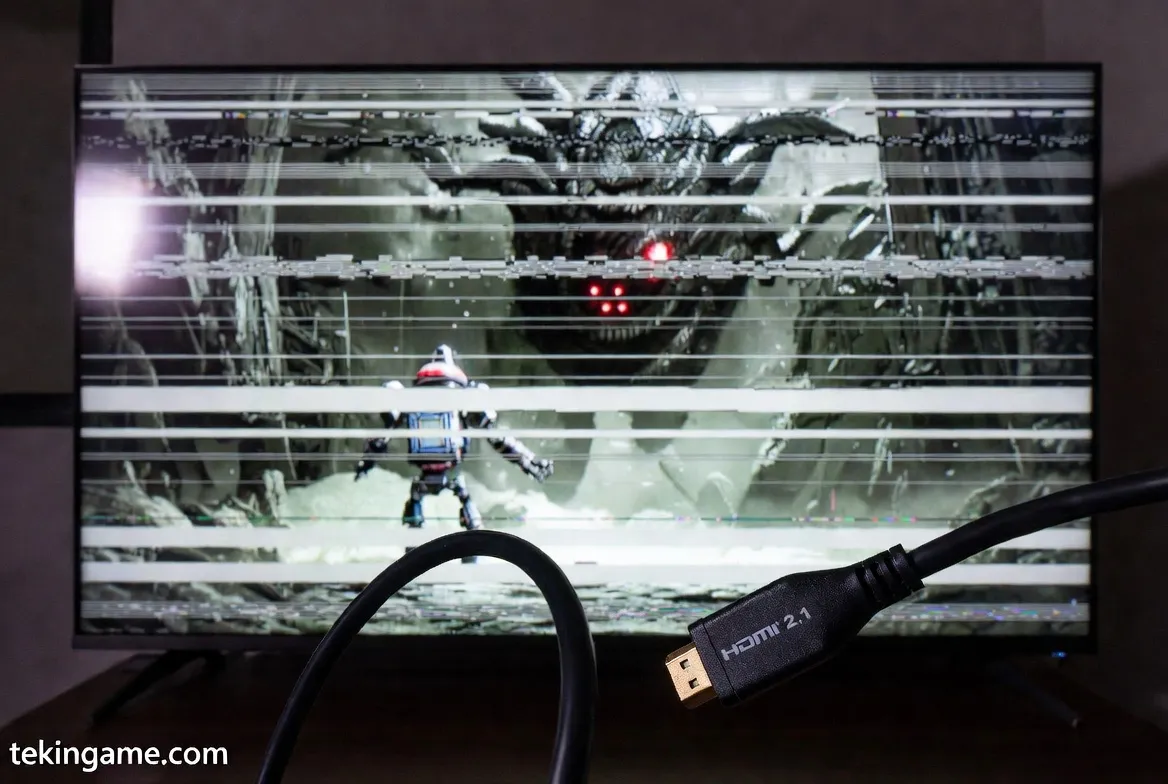
VRR (Variable Refresh Rate) technology is great for preventing screen tearing, but it currently has handshake issues with certain TV brands.
Symptoms: Horizontal white lines or the screen blacking out every 10 seconds.
The Fix:
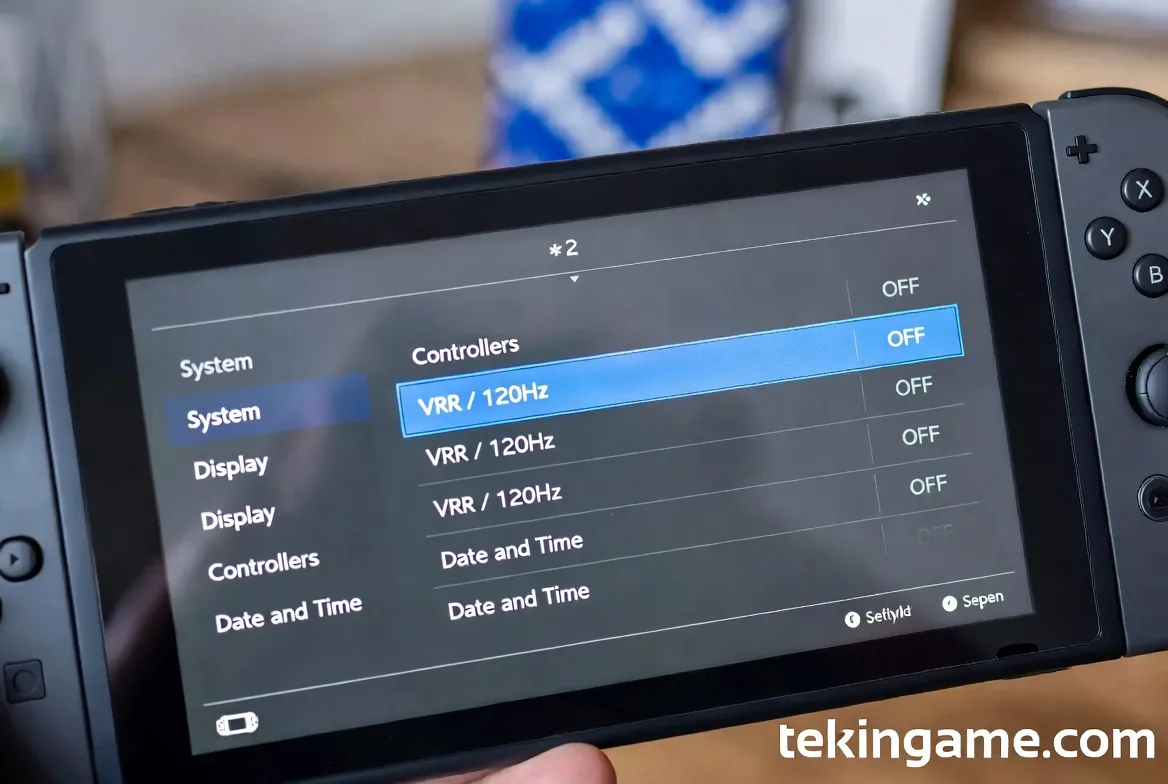
- Go to
Settings > TV Output > VRRand toggle it OFF. - On LG OLED TVs (C2, C3, C4 models), disable AMD FreeSync Premium in the TV's Game Optimizer menu. The Switch 2 uses the standard "HDMI Forum VRR" protocol, which conflicts with FreeSync on some firmwares.
2. Thermal Management: Is My Switch 2 Overheating?
PS4 Pro-level graphics in a handheld device? Naturally, it generates heat. But where is the line between "Warm" and "Dangerous"?
2.1. Understanding the T239 Architecture: What Temp is Safe?
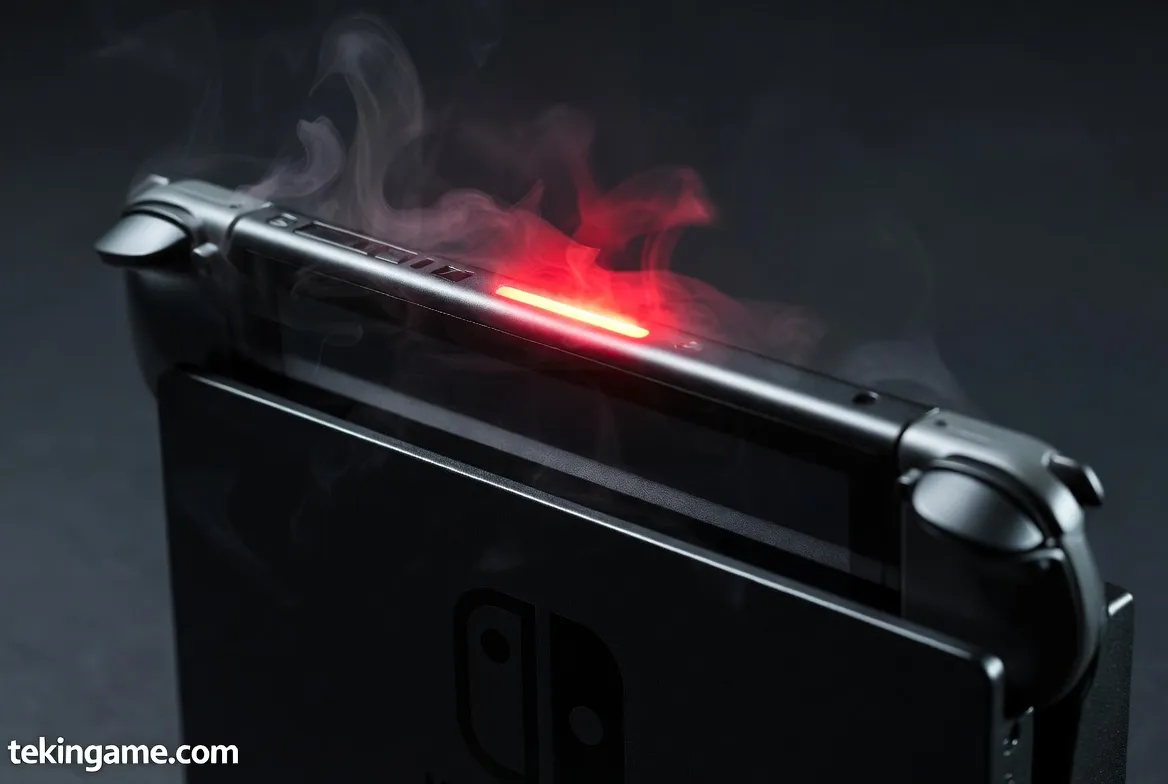
The Nvidia T239 chip is designed to operate safely at temperatures up to 90°C (194°F). In our stress tests running Metroid Prime 4, the outer shell reached 55°C, while the core hit 82°C.
Important Note: The Switch 2 fan is significantly louder than the OLED model. This is not a defect; it means the cooling system is doing its job effectively.
2.2. Cooling Hacks for Docked Mode
The new Dock is slimmer, which can trap heat. To ensure longevity:
- Keep the back panel of the Dock (where ports are) open or removed entirely to allow airflow.
- Do not place the console horizontally inside a closed TV cabinet. The Switch 2 is designed to vent heat vertically from the top vents.
3. Data Transfer: Crossing the "Bridge of Panic" (Switch 1 to 2)
A gamer's biggest nightmare: Losing a 500-hour save file in Zelda: TOTK. The migration process is a bit strict.
3.1. Common Errors During Wireless Local Transfer
If you keep getting "Connection Error" while using the "Transfer Your User Data" option, it is usually a power or WiFi issue.
The Golden Rule: Both consoles MUST be plugged into their AC adapters. Nintendo blocks heavy data transfer on battery power (even at 90% charge). Also, ensure both consoles are connected to the same WiFi band (preferably 5GHz).
3.2. The "Animal Crossing Island" Problem
Animal Crossing: New Horizons has a unique save system and does not transfer with the standard user migration. You must:
- Download the free Island Transfer Tool from the eShop on BOTH consoles.
- Follow the in-app instructions to "Move" the island. Warning: If you format your old console before doing this, your island is gone forever!
4. Storage Revolution: SD Express Explained
The Switch 2 supports the new SD Express standard, which is 10x faster than standard cards (up to 800 MB/s).
4.1. Why Old MicroSD Cards Cause Texture Pop-in
Next-gen games (like the upcoming GTA VI port) require high-speed data streaming to load textures. If you use your old, slow UHS-I card in the Switch 2, you might experience "Texture Pop-in" (blurry objects loading late).
4.2. Which Card Should I Buy?
SD Express cards are currently expensive. TekinGame's budget recommendation:
- For Next-Gen AAA Games: Install them on the console's 256GB internal storage for maximum speed.
- For Indies & Old Games: Use your standard SanDisk Extreme cards. They work perfectly for backward-compatible titles.
5. New Joy-Cons & Connectivity Issues
5.1. Magnetic Interference and Bluetooth 5.3
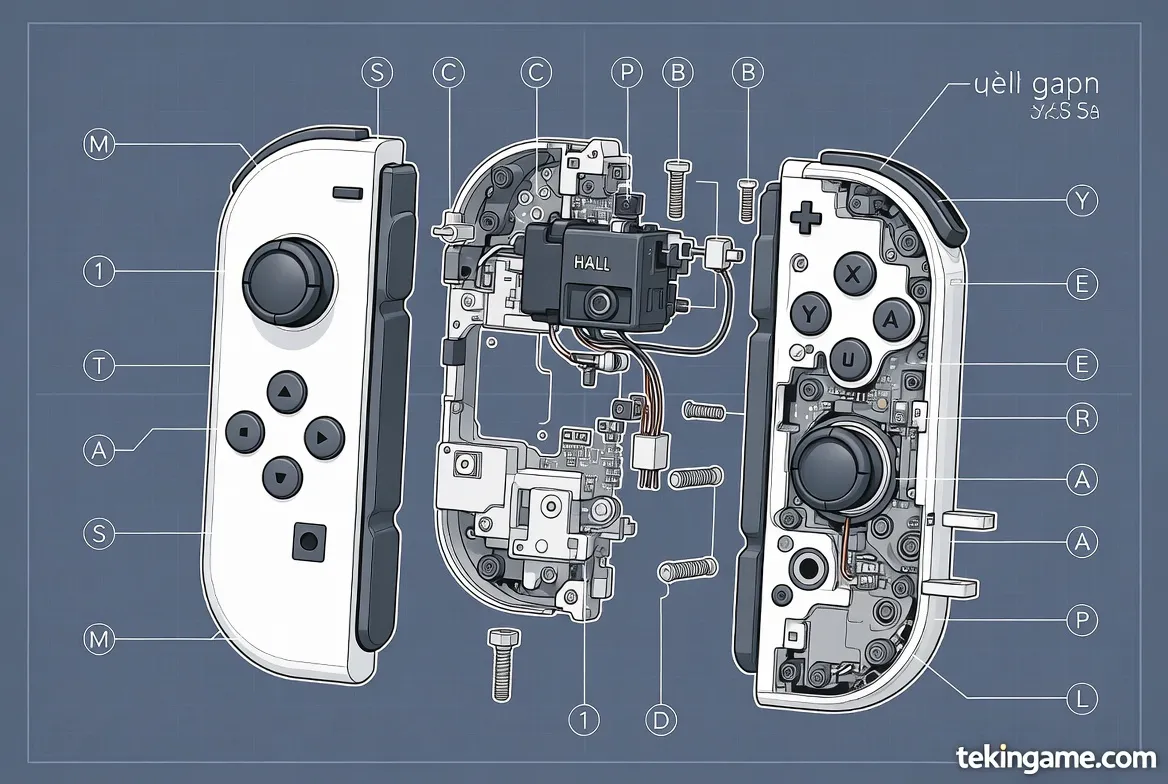
The new Joy-Cons attach via electromagnets instead of mechanical rails. Reports suggest that wearing a "Smartwatch" or "Magnetic Bracelet" on your wrist might cause momentary disconnection.
Additionally, the "Hall Effect" analog sticks (which prevent drift) are sensitive to strong external magnetic fields. Do not place your controller directly on top of a subwoofer or near a WiFi router.
6. Battery Optimization: How to Get 6 Hours of Playtime
The Switch 2 has the same battery capacity as the OLED model, but the hardware is 3x more powerful. By default, heavy gaming lasts about 3 hours.
6.1. The Magic of DLSS on Battery Life
Nvidia's DLSS technology is your battery's best friend.
In game settings, always choose Performance Mode when playing handheld. The game renders at a lower resolution (saving power) and uses DLSS to upscale the image to a crisp 1080p. This reduces the load on the GPU and can extend battery life by up to 45 minutes.
7. Backward Compatibility: Playing Old Games
All your Switch 1 cartridges work on Switch 2, but there is a catch.
7.1. Graphics Patches and "Boost Mode"
Some games (like Zelda: BOTW) receive an automatic "Enhanced Patch" that unlocks 4K resolution and 60fps.
However, some unpatched older games might run "too fast" or have physics bugs due to the extra power. If an old game behaves strangely, hold L + R while launching the game to force it into Legacy Mode (which emulates the exact clock speeds of the original Switch).
Do NOT open the console screws to clean the fan. The Switch 2 uses thermal seal stickers that change color when tampered with, which voids your international warranty.
If you have a serious hardware defect (like a grinding noise), contact your retailer for an RMA.