
1. The Local AI Revolution: Why Switch from Copilot?
You might be asking, "If ChatGPT and GitHub Copilot are so good, why should I bother setting up a local LLM?" It’s a valid question. The answer lies in three critical pillars: Privacy, Cost, and Independence.
The Privacy Nightmare
When you use cloud-based AI tools, snippets of your code—and potentially sensitive API keys or logic—are transmitted to external servers for inference. For hobby projects, this is fine. For enterprise work or stealth startups, it’s a security risk. With a Local LLM like Devstral 2, your data never leaves your LAN. You could literally pull the ethernet cable, and your AI would still work perfectly.
Zero Latency, Zero Cost
- No Monthly Bills: Once you own the hardware, the inference is free. No more $10 or $20 monthly recurring costs.
- Latency: On a high-end GPU (like an RTX 3090 or 4090), token generation speed can actually exceed cloud APIs because you eliminate the network lag.
2. Hardware Requirements: Can Your Rig Handle It?
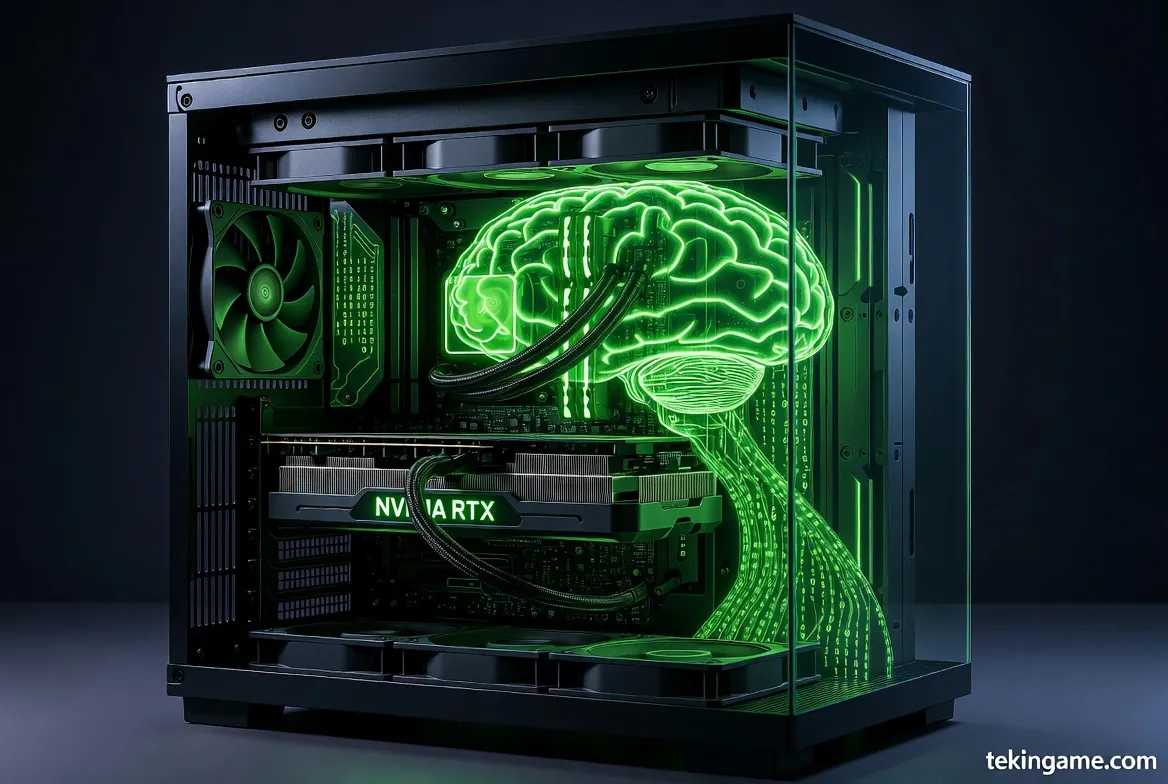
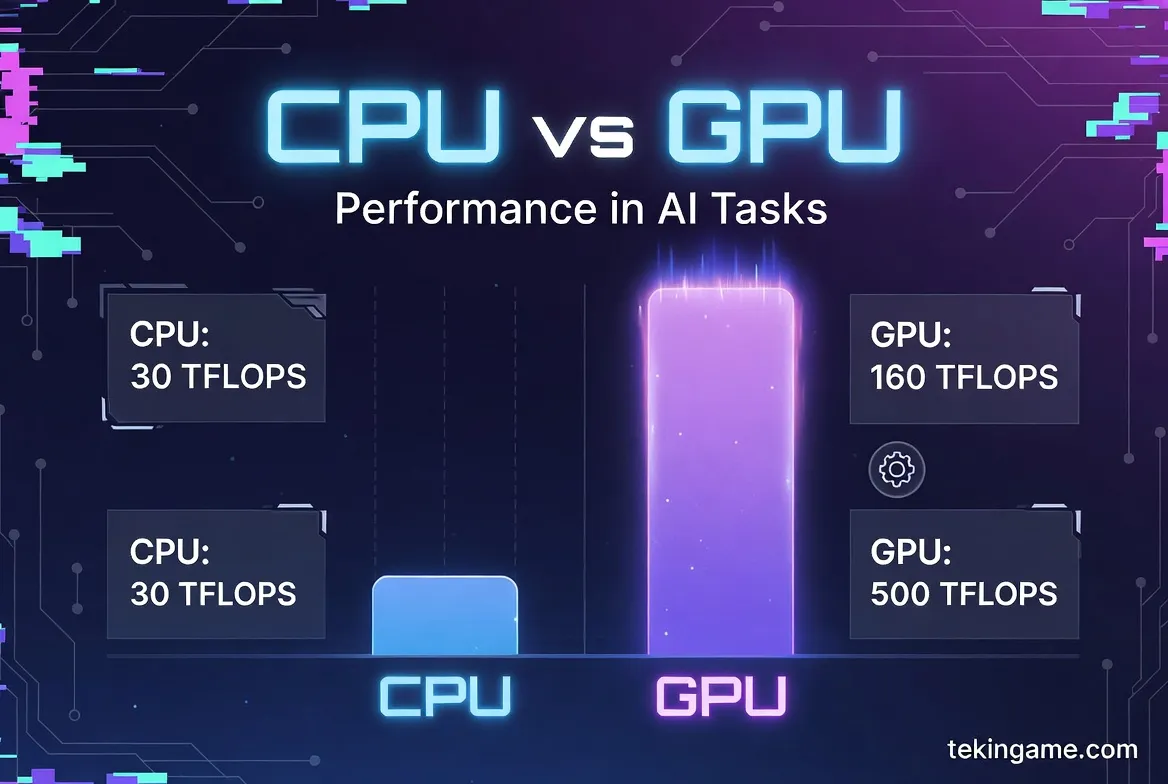
Running Large Language Models (LLMs) is different from gaming. While games rely on raw clock speed and shader cores, AI models are hungry for VRAM (Video RAM) and memory bandwidth.
Minimum Requirements (For 7B Parameter Models):
- GPU: NVIDIA RTX 3060 (12GB) is the absolute sweet spot for entry-level AI. 8GB cards can work but will limit the context window.
- RAM: 16GB DDR4/DDR5 system memory.
- Storage: An NVMe SSD is essential for fast model loading times.
Recommended "Tekingame" Spec (For Pro Coding):
- GPU: NVIDIA RTX 3090/4090 (24GB VRAM). This allows you to run larger models (like Mixtral 8x7B) or standard models with massive context windows.
- RAM: 32GB or 64GB. If your GPU VRAM fills up, the model can offload layers to your system RAM (though this is slower).
- Mac Users: Any M1/M2/M3 Mac with at least 16GB Unified Memory works incredibly well due to the unified architecture.
3. The Toolbelt: Meeting Ollama and Devstral 2
In the "old days" (six months ago), running an LLM meant messing around with Python virtual environments, PyTorch, and CUDA drivers. It was a headache. Enter Ollama.
Ollama is a lightweight, robust platform that packages everything you need into a single binary. It handles the GPU drivers, the model weights, and the API server automatically.
The Model: Devstral 2 (Mistral Architecture)
We are using the "Devstral" philosophy—a fine-tuned approach to the famous Mistral 7B model. This model punches way above its weight class, often outperforming Llama 2 13B and approaching GPT-3.5 levels of coding proficiency in Python, JavaScript, and Rust benchmarks.
4. Step 1: Installing the Engine (Ollama)
Let's get your hands dirty. We will use Windows for this guide, but the steps are nearly identical for macOS and Linux.
- Navigate to the official website: ollama.com.
- Click Download for Windows.
- Run the installer. Once finished, you will see the small Ollama icon in your system tray.
To verify the installation, open your Command Prompt (Win + R, type cmd) or PowerShell and type:
ollama --version
If it returns a version number (e.g., 0.1.29), the engine is running.
5. Step 2: Downloading the Brain (Devstral/Mistral Model)
Now we need to download the "brain." Since Devstral is built on the Mistral core, we will pull the latest optimized version from the library.
In your terminal, run:
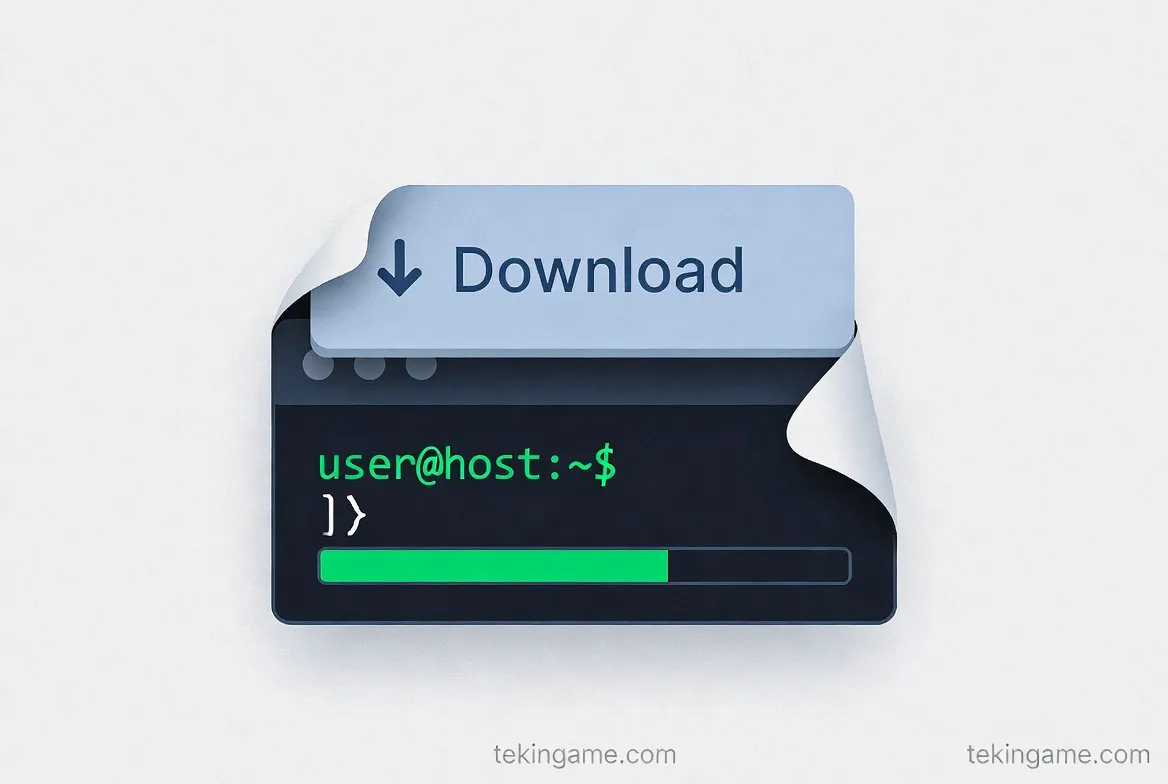
ollama run mistral
(Note: If you have a specific custom `.gguf` file for Devstral 2, you can create a custom Modelfile, but for 99% of users, the base Mistral instruct model is the perfect foundation).
What happens next?
Ollama will download approximately 4.1GB of data. Once finished, it will drop you directly into a chat prompt. Test it out immediately:
> Write a Python script to scrape headlines from a website using BeautifulSoup.
Watch your GPU fans spin up as the text generates locally!
6. Step 3: Integrating with VS Code (The Copilot Killer)
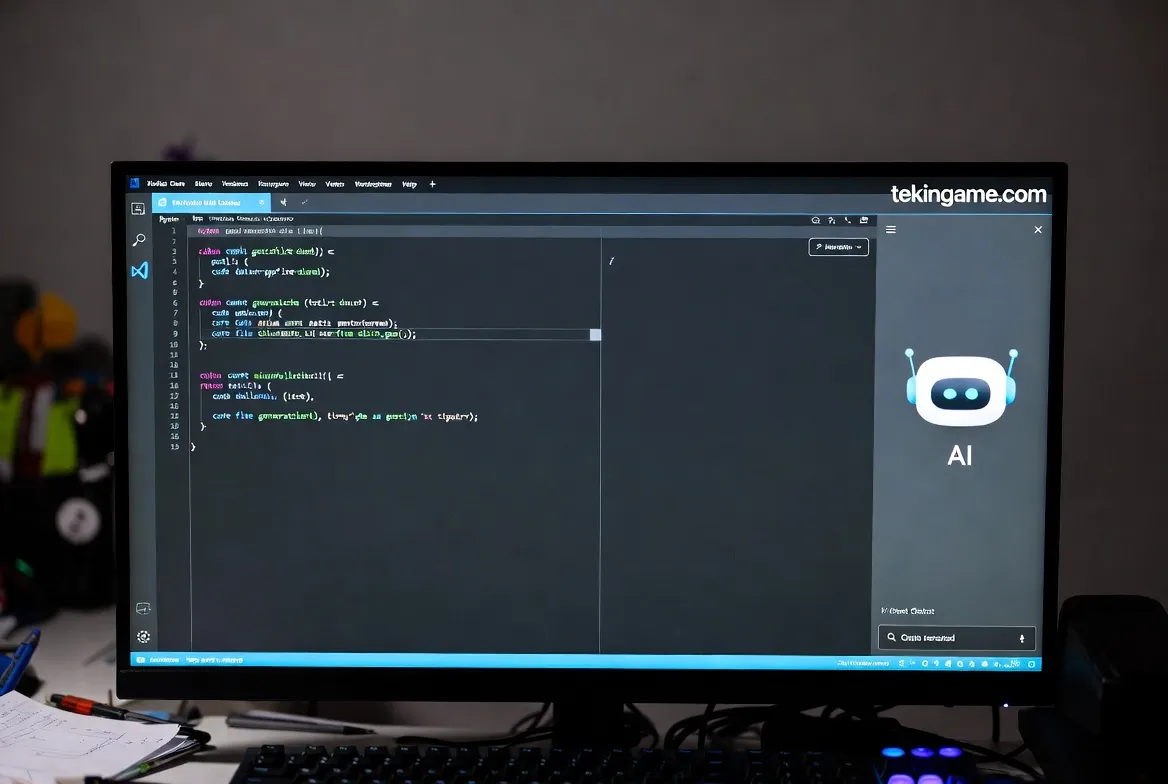
Chatting in a terminal is cool, but we want Autocomplete and Refactoring inside our IDE. To do this, we need the Continue extension.
- Open Visual Studio Code.
- Go to the Extensions Marketplace (Ctrl+Shift+X) and search for "Continue".
- Install "Continue - The open-source AI code assistant".
- Once installed, click the Continue logo in the left sidebar.
- At the bottom of the chat panel, click the dropdown to select a model, then click "Add Model".
- Select Ollama as the provider.
- Choose Autodetect. It should instantly find your running Mistral instance.
How to use your new superpowers:
- Chat: Use `Ctrl + L` (Cmd + L on Mac) to highlight code and ask questions like "Explain this function" or "Find the bug here."
- Edit: Highlight code, press `Ctrl + I`, and type "Refactor this to be more efficient." Watch it rewrite your code in real-time.
- Autocomplete: Continue also supports tab-autocomplete (ghost text) while you type, similar to Copilot.
7. Advanced Tuning: Context Windows & System Prompts
If you have high-end hardware (like that 128GB RAM beast we know some of you have!), you can push the model further.
Expanding the Context Window
The "Context Window" is how much of your code the AI can "see" at once. Default is usually 4096 tokens. To increase this:
- Stop the model in the terminal (Ctrl+C).
- Create a file named
Modelfile(no extension). - Paste this inside:
FROM mistral
PARAMETER num_ctx 16384
- Run the command:
ollama create devstral-pro -f Modelfile - Now select "devstral-pro" in VS Code. You can now feed it entire massive files!
The "Senior Dev" System Prompt
To stop the AI from being too chatty and force it to just code, change the System Prompt in the Continue settings to:
"You are an expert Senior Software Engineer skilled in Clean Code and Architecture. Answer concisely. Focus on performance, security, and scalability. Do not apologize, just provide the code."
8. Conclusion & FAQ
By following this guide, you have successfully reclaimed your digital independence. You are running a state-of-the-art AI model on your own metal. No spying, no fees, no limits.
Frequently Asked Questions:
- Is it as smart as GPT-4? Honestly? Not quite yet. GPT-4 is a trillion-parameter model. Mistral/Devstral is 7 billion. However, for daily coding tasks, it is surprisingly capable and much faster.
- Can I use this for C# or C++? Yes! These models are trained on massive datasets including almost all major programming languages.
Did you get it running? Share your benchmark speeds and setup photos in the comments below! Welcome to the future of offline development.
Subscribe to the Tekingame Newsletter so you never miss a tutorial on fine-tuning your own models!