
1. Step One: Gallery Detox (Smart Deletion of Photos & Videos)
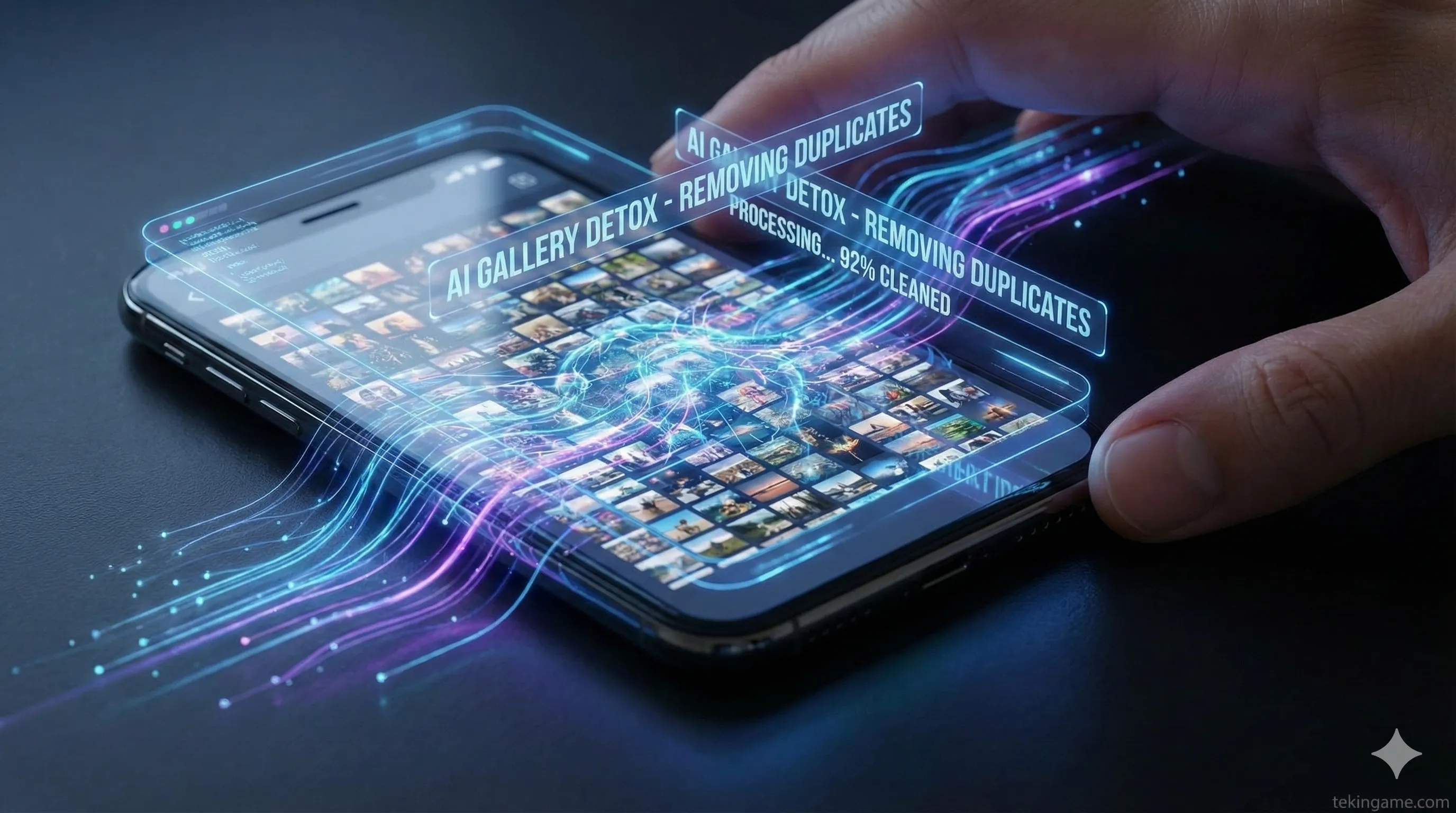
Let's begin with the heaviest burden on your device: The Photo Gallery. In 2025, mobile cameras are capturing massive 48MP and 200MP raw files and 4K videos. Your gallery is likely a graveyard of duplicate shots, useless screenshots, and blurry videos that you will never watch again.
A) Harnessing the Power of AI
Gone are the days of manually checking every single photo. Both iOS 19 and Android 16 feature powerful built-in AI tools designed for this exact purpose:
- On iPhone: Navigate to the Utilities album and open the Duplicates folder. Tap Merge to let the phone automatically keep the highest quality version and delete the redundant copies. It’s magic.
- On Android (Google Photos): Tap your profile picture and select Free up space. Google's AI will identify blurry photos, old screenshots, and large video files, offering a one-tap solution to clear them out.
B) The "Zero Screenshot" Rule
Believe it or not, screenshots constitute about 30% of the average user's gallery. These are often temporary captures—a recipe, a funny tweet, or a map address—that we save for "later" but never use. Go to your search bar, type "Screenshots," select all, and unless it is a vital legal document, delete them without mercy.
C) WhatsApp & Telegram: The Silent Killers
Many of us forget that messaging apps automatically save media to our local storage.
The Fix: In WhatsApp, go to Settings > Storage and Data > Manage Storage. Here, you can view files larger than 5MB and delete them in bulk. For Telegram users, clear your Cache via Data and Storage settings. This does not delete the chat history from the cloud, but it frees up gigabytes on your phone instantly.
2. Step Two: The App Graveyard (Storage Management & Hidden Subscriptions)
Your home screen shouldn't look like a chaotic bazaar. Unused applications—often called "Zombie Apps"—not only hog storage but also drain battery in the background and potentially track your location data.
The "Offload" Technique (iOS)
If you have an app you only use once a year (like an airline app or a specific utility tool), you don't need to delete it entirely.
Go to Settings > General > iPhone Storage. Click on the app and select Offload App. This removes the app's binary file to free up space but keeps your personal data and settings intact. When you reinstall it, everything is exactly where you left it.
Revoking Hidden Permissions
Many apps have access to your microphone, camera, or location without you realizing it.
Android: Visit the Privacy Dashboard to see a timeline of which apps accessed what sensors in the last 24 hours. Revoke permissions for anything suspicious.
iOS: Check the App Privacy Report under Privacy & Security settings.
The Subscription Audit
This is a financial detox as well. Check your subscriptions on the App Store or Google Play. Often, a "3-day free trial" turns into a yearly subscription that you forgot about. Cancel anything you haven't used in the last month. You might save enough money for a nice New Year's dinner!
3. Step Three: The Mastermind (Organizing Files & Laptop Desktop)
A cluttered desktop equals a cluttered mind. When you boot up your laptop and are greeted by hundreds of random icons, your brain subconsciously spikes in stress, and your system boot time suffers.
The "Downloads" Folder: A Digital Black Hole
The Downloads folder is usually the dirtiest place on a computer. It is filled with old installers (Setups), random PDFs, and images.
Quick Drill: Sort your Downloads folder by "Date Modified." Highlight everything older than 3 months. If you haven't opened it in 90 days, you likely don't need it. Shift+Delete them.
The PARA Method for 2026
Stop creating random folders. For the new year, adopt the famous PARA method to organize your digital life:
- Projects: Things you are actively working on now (with a deadline).
- Areas: Ongoing responsibilities without a deadline (Health, Finances, Car Maintenance).
- Resources: Things you want to keep for future reference (Articles, Design Assets).
- Archives: Completed projects. (Move everything currently on your desktop into here!).
Disk Cleanup Tools
If you are on Windows, use the built-in Disk Cleanup tool or Microsoft's excellent PC Manager app to wipe temporary files and system cache. For Mac users, software like CleanMyMac X (or even the built-in storage manager) works wonders.
4. Step Four: Security Detox (Passwords, Updates & Permissions)

Decluttering isn't just about cleaning; it's about locking the doors. In 2026, cyber threats are more sophisticated than ever.
Kill the Duplicate Passwords
If you are still using the same password for Instagram and your Email, you are in danger.
Immediate Action: Install a Password Manager (like 1Password, Bitwarden, or Google Password Manager). Identify weak passwords and replace them with long, randomized strings. Also, if a website supports Passkeys (biometric login), enable it immediately.
Check Active Sessions
Go to the security settings of your Telegram, Instagram, Google, and Twitter accounts. Look for a section called Devices or Active Sessions. Do you see a device you don't recognize? Or perhaps that old phone you sold six months ago? Log them out immediately.
Update the OS
It might be annoying, but hit that Update button. Security Patches close the invisible doors that hackers love to exploit. Ensure your OS and your browser (Chrome/Safari) are updated to the latest 2025/2026 build.
5. Step Five: Survival Strategy (The 3-2-1 Backup Rule)
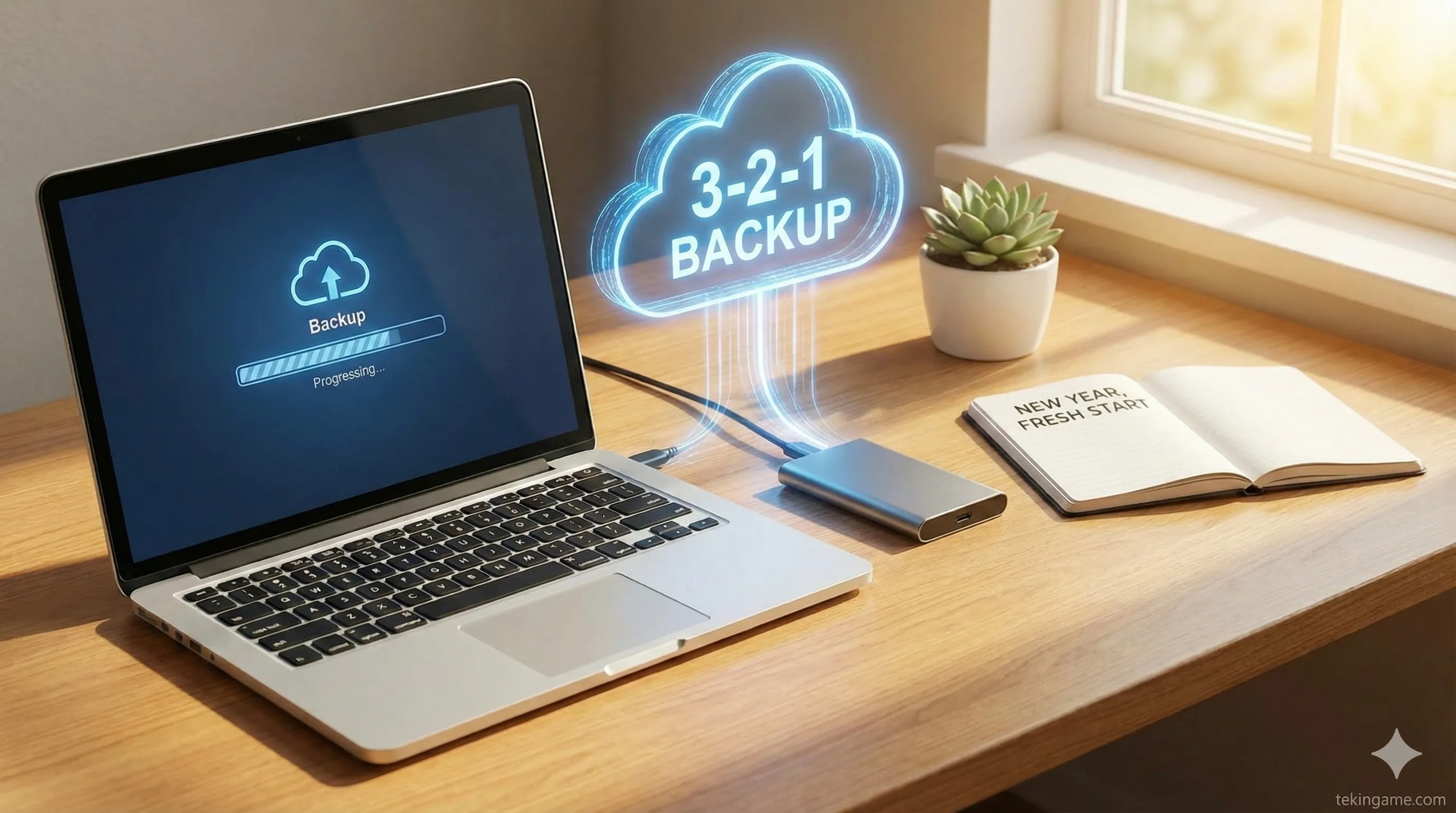
Imagine your phone gets stolen or your laptop hard drive crashes right now. How do you feel? If you feel panic, it means you don't have a backup.

The Golden 3-2-1 Rule
This is the global standard for data protection:
- 3 Copies: Keep three total copies of your data (One primary + two backups).
- 2 Formats: Store them on two different media types (e.g., one on your laptop, one on an external SSD).
- 1 Off-site: Keep one copy off-site (Cloud storage like Google Drive or iCloud).
Physical Hygiene (Yes, this matters too!)
Now that the inside is clean, clean the outside. Use a wooden toothpick to gently remove lint from your phone's charging port (a common cause of charging failure). Sanitize your screen and keyboard with a microfiber cloth and appropriate solution. A physically clean device feels like a new beginning.
6. Bonus Section: Digital Mental Hygiene (Notifications)
This section is optional, but its impact on your peace of mind in 2026 will be profound.
Inbox Zero: In Gmail, search for the word unsubscribe. You will see a list of newsletters you haven't opened in years. Unsubscribe from them all. Then, filter promotional emails older than one year and delete them in bulk.
Notification Fasting: Go to your phone settings. Do you really need to know the second someone goes "Live" on Instagram? Turn off notifications for everything except Calls, Texts, and Work Messengers. Let you decide when to check your phone, not the other way around.
Conclusion: Entering the New Year Light
Congratulations, Commander! 🎉 If you followed these steps, you now possess a device that is gigabytes lighter, significantly faster, and much more secure. But more importantly, your mind is now organized.
Technology should serve us, not burden us. I suggest setting a recurring Reminder in your calendar for 6 months from now to repeat this process. Happy New Year 2026; may it be a year full of speed, security, and progress.
Which step was the hardest for you? Deleting photos or organizing files? Let us know in the comments.