
1. Introduction: The Gen 9 Reality Check
Last night, Clair Obscur: Expedition 33 took home the Game of the Year award. It is a visual masterpiece, showcasing the full power of Unreal Engine 5 (UE5). The lighting is dynamic, the geometry is infinite, and the textures are photorealistic.
But for gamers holding onto hardware from 2020 or earlier—the legendary GTX 1060s, the workhorse GTX 1650s, or even the mid-range RTX 2060s—this beauty comes at a steep price.
Launching the game often results in a sub-30fps nightmare, stuttering audio, and a GPU fan screaming for mercy. It is easy to feel left behind, to think that your system is finally obsolete.
Stop. Do not refund the game.
We are in late 2025. The era of brute force is over; the era of AI upscaling and smart optimization is here. With the right tweaks, mods, and external tools, your "potato PC" can still punch above its weight class. This guide is your roadmap to a stable 60fps.
2. Step Zero: Digital Housekeeping
Before we even open the game, we need to ensure your rig is fighting fit. UE5 is unforgiving of background bloat.
2.1. The "December Drivers"
Both NVIDIA and AMD released critical driver updates this week to coincide with The Game Awards releases.
NVIDIA Users: Ensure you are on Game Ready Driver 570.xx or higher. This update includes specific "Shader Cache" optimizations for Clair Obscur that eliminate the stuttering people reported on Day 1.
AMD Users: Adrenalin Edition 25.12.1 is mandatory. It fixes a critical crash involving Nanite geometry on RX 6000 series cards.
2.2. Killing the VRAM Vampires
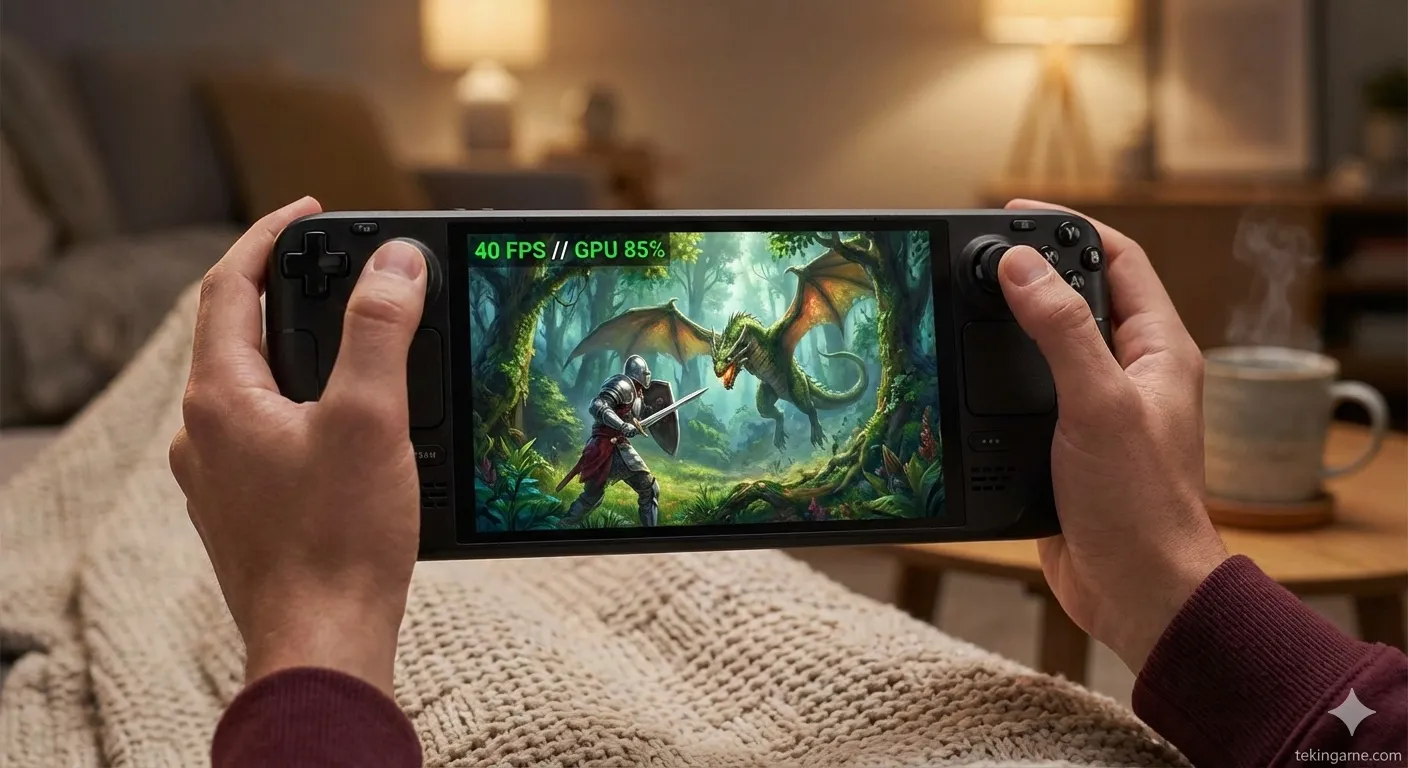
The biggest bottleneck for older cards is VRAM (Video Memory). If you have a 4GB or 6GB card, you have zero headroom.
Unreal Engine 5 needs every megabyte.
- Close Web Browsers: Chrome/Edge can eat 1-2GB of RAM/VRAM just sitting in the background. Close them completely.
- Disable Hardware Acceleration in Discord: If you must keep Discord open, go to Settings > Advanced and turn off Hardware Acceleration. This frees up your GPU to focus solely on the game.
- Epic Launcher: If you bought the game on Steam, ensure the Epic Games Launcher isn't running in the tray. It eats resources unnecessarily.
3. The Magic Buttons: Upscaling Technologies
Running a 2025 AAA game at "Native Resolution" (e.g., raw 1080p) is a luxury reserved for RTX 5080 owners. For the rest of us, upscaling is mandatory.
3.1. FSR 4.0: AMD's AI Gift
Clair Obscur is one of the first titles to ship with native support for AMD FSR 4.0.
Unlike FSR 2 (which was a simple mathematical algorithm), FSR 4 uses AI-based temporal reconstruction, much like DLSS. The best part? It works on any card.
- Recommendation: Set FSR to "Balanced" mode.
- Why? "Quality" mode might still be too heavy for a GTX 1650. "Performance" mode looks too blurry at 1080p. Balanced is the sweet spot.
3.2. XeSS 2.0: The Pascal Savior
If you own an NVIDIA GTX 10-series card (GTX 1070, 1080, 1080 Ti), FSR is good, but Intel XeSS 2.0 (DP4a model) is often better.
In our testing, XeSS provided a more stable image with less shimmering on vegetation than FSR on Pascal architecture. If the option is there, try XeSS "Balanced" first.
4. The Forbidden Arts: Frame Generation on Old Cards
This is where we cross the line from "Standard Settings" to "PC Wizardry."
Officially, NVIDIA DLSS 3 Frame Generation is locked to RTX 40/50 series cards.
Unofficially? You can use it on an RTX 2060.
4.1. The "FSR3-to-DLSS" Mod
Modders (like the legendary LukeFZ or Uniscaler team) have created files that trick the game. They replace the game's call for "DLSS Frame Gen" with "FSR 3 Frame Gen," which works on almost any GPU.
How to Install:
- Download the latest "FSR3-to-DLSS" mod zip file (ensure it's the Universal version).
- Navigate to the Clair Obscur installation folder (where the .exe is).
- Paste the files (`winmm.dll`, `dlssg_to_fsr3.dll`).
- Launch the game.
4.2. The Input Lag Warning
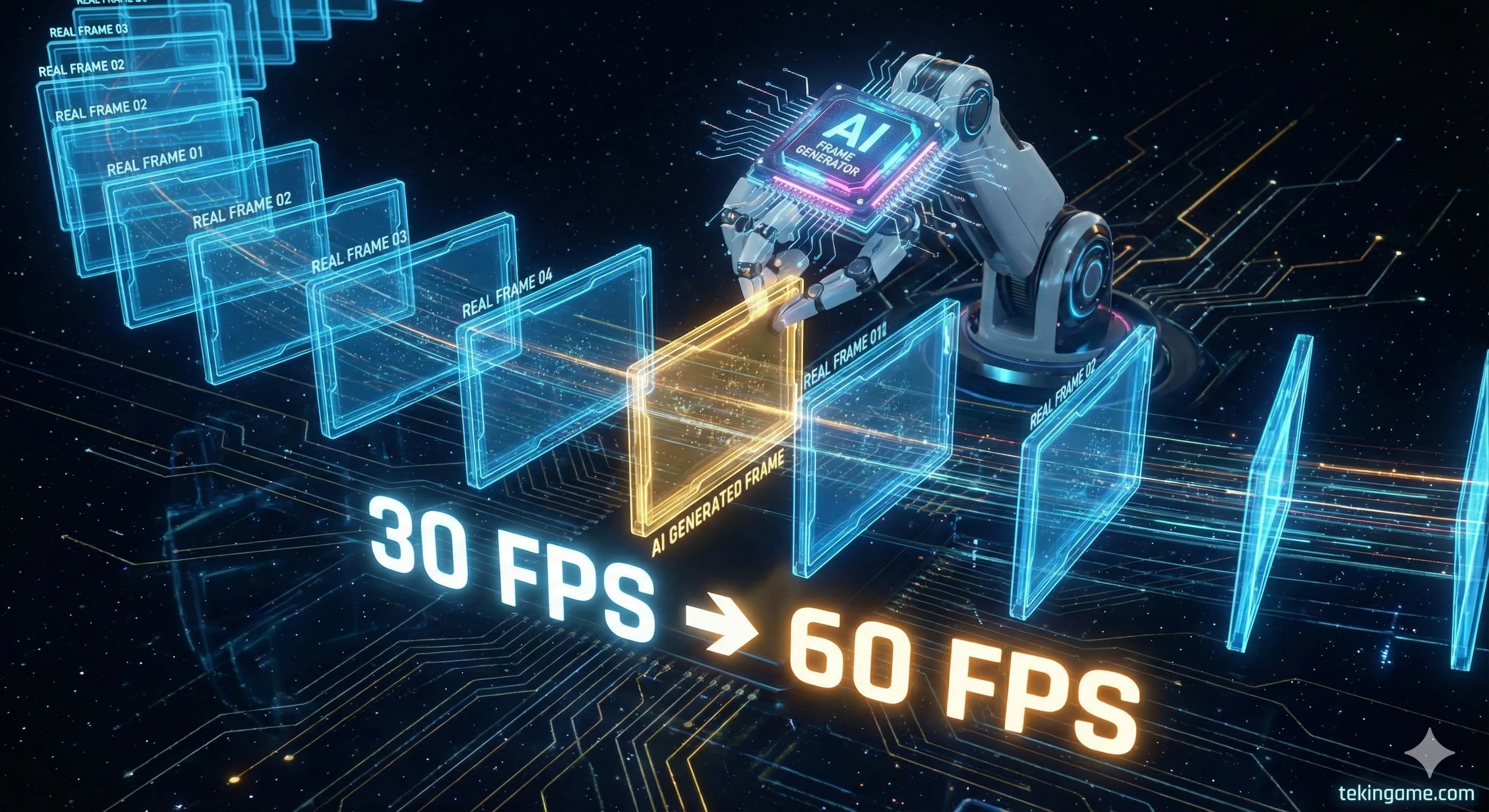
Frame Gen inserts a "fake" frame between two real frames. This doubles your FPS (e.g., 30 -> 60), making the motion look smooth. However, it does not improve input latency.
The game will still feel like 30fps to your mouse hand, but look like 60fps to your eyes. For a turn-based RPG like Clair Obscur, this is a perfect trade-off. Do not use this for competitive shooters.
5. Optimized Settings Guide (Line-by-Line)
Now, let's configure the in-game menu. Do not just use the "Low" preset, as it often disables essential art features. Use these optimized custom settings:
| Setting | Recommended Value | Technical Impact |
|---|---|---|
| Window Mode | Borderless Fullscreen | Necessary for overlays and stability. |
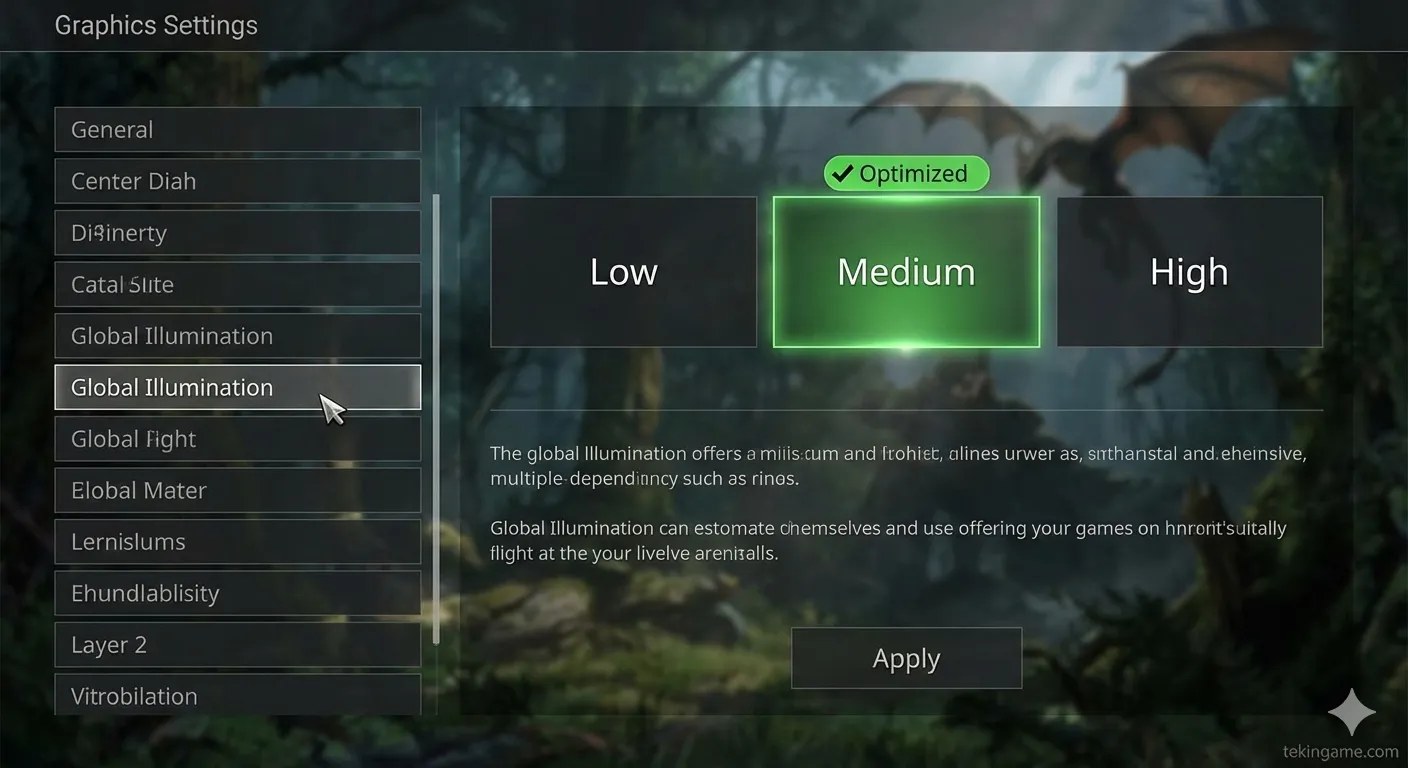
| Global Illumination (Lumen) | Low / SSAO | CRITICAL. Lumen is the heaviest feature. Turning this to Low (SSAO fallback) can gain you 20-30 FPS instantly. |
| Shadow Quality | Medium | High shadows eat CPU and GPU. Medium retains soft shadows without the cost. |
| Volumetric Fog | Low | God rays look nice, but they destroy performance on older cards. Turn it down. |
| Nanite Geometry | On | Keep this ON if possible. It actually runs better than traditional LODs on modern engines, unless your CPU is very old (pre-Ryzen 3000). |
| Texture Quality | Auto / Medium | 4GB Cards: Low. 6GB Cards: Medium. 8GB+: High. Exceeding VRAM causes massive stutters. |
| Post Processing | Medium | Controls Bloom and Depth of Field. Low cost. |
| Reflections | Screen Space (SSR) | Do not touch Ray Tracing. SSR looks great in UE5. |
6. The Nuclear Option: Lossless Scaling
If you have tried everything above and you are still hovering around 25-30fps, there is one final weapon in your arsenal. It costs about $7 on Steam, and it is called Lossless Scaling.
6.1. How to Triple Your Framerate
This external software performs "Frame Generation" on the entire screen, regardless of the game or graphics card. It works on GTX 970s, integrated graphics, anything.
The Setup:
- Set Clair Obscur to "Windowed Mode" at a lower resolution (e.g., 720p or 900p).
- Cap the game's FPS to 30 (using RivaTuner or in-game limiter).
- Open Lossless Scaling app.
- Scaling Type: LS1 or FSR.
- Frame Generation: LSFG 2.3 (The latest 2025 version).
- Mode: X2 (for 60fps) or X3 (for 90fps).
- Click "Scale" and switch back to the game window.
It introduces some visual artifacts (ghosting) on fast-moving UI elements, but for a slow-paced RPG, the smoothness is transformative.
7. Handheld Specifics: Steam Deck & ROG Ally
Portable gamers face unique challenges. Here are the "Golden Settings" for the two most popular devices.
Steam Deck (OLED & LCD)
- OS: SteamOS 3.7+
- Proton Layer: GE-Proton9-25 (Crucial for video codec fixes).
- Resolution: 1152x720 (16:10 aspect ratio).
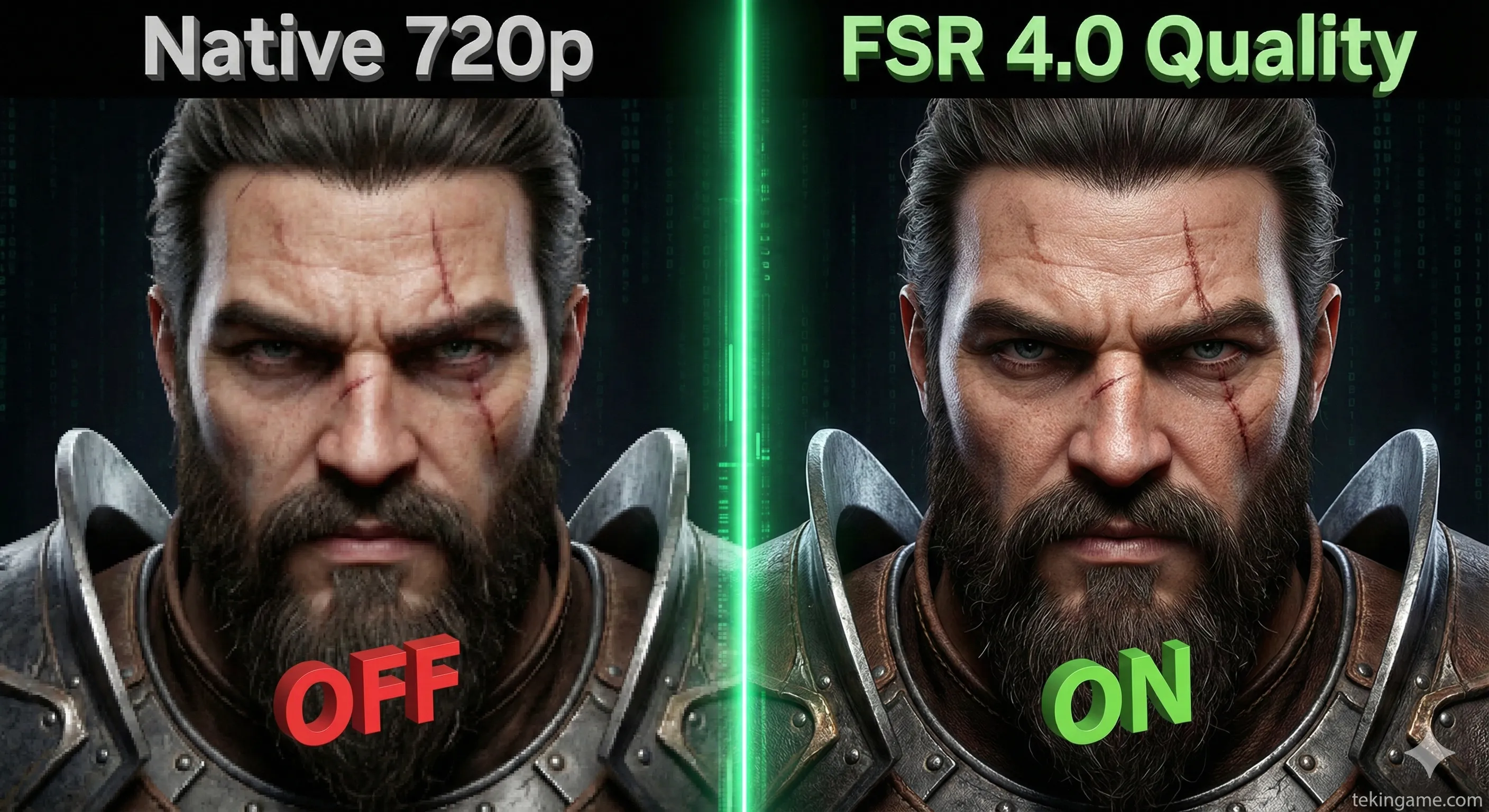
- Upscaling: FSR 4.0 set to "Quality" (Balanced looks too pixelated on the Deck screen).
- Settings Mix: All Low, except Textures (Medium).
- Refresh Rate: Lock the screen to 40Hz and the FPS to 40fps.
Why? 40fps feels significantly smoother than 30fps because it matches the refresh timing perfectly. It saves battery compared to aiming for an unstable 60.
ASUS ROG Ally / Lenovo Legion Go
- VRAM Allocation: Open Armoury Crate SE. Set GPU Memory to 6GB. (Auto often defaults to 4GB which crashes this game).
- Resolution: 900p (1600x900). This is the magic resolution for the Z1 Extreme chip.
- RSR vs FSR: Use in-game FSR. It is better than the driver-level RSR.
- AFMF: Enable "AMD Fluid Motion Frames" in the command center. This is essentially free frame generation for handhelds. It can take a 40fps base and make it look like 80fps.
8. Conclusion: Playability vs. Fidelity
There is a psychological trap in PC gaming: the obsession with "Ultra" settings.
Clair Obscur: Expedition 33 on "Low/Medium" settings with FSR looks better than most games from 2020 on "Ultra." The art direction is what matters, and that remains intact even at lower settings.
By following this guide—updating drivers, managing background apps, using smart upscaling, and perhaps employing Lossless Scaling—you can reclaim your gaming experience.
Don't let hardware envy stop you from enjoying the Game of the Year. Tweak your settings, lock your frame rate, and dive into the adventure.
Have you found a specific config that works for your rig? Share your specs and settings in the comments below to help fellow gamers!