1. Understanding the Enemy: What Do Agents Actually See?
Before we can defend ourselves, we must understand the nature of the attack. Modern AI Agents, like OpenAI Operator or Microsoft Copilot Vision, utilize a technology called VLM (Vision Language Model).
Unlike old bots that read website code (HTML), these Agents "see" pixels exactly like a human eye does. They analyze your screen 30 times a second. They can identify that you are depressed based on your Spotify playlist, calculate your net worth by glancing at your open Excel sheet, and map your social circle by watching who you DM on Telegram. The danger isn't just the AI; it's that this data is often sent to the cloud for "model training."
2. Layer 1: The OS Purge (Windows Hardening)
Microsoft has baked AI deep into the kernel of Windows. To secure your PC, we need to perform surgery on the OS settings.
2.1. Disabling Windows Recall & Copilot Vision

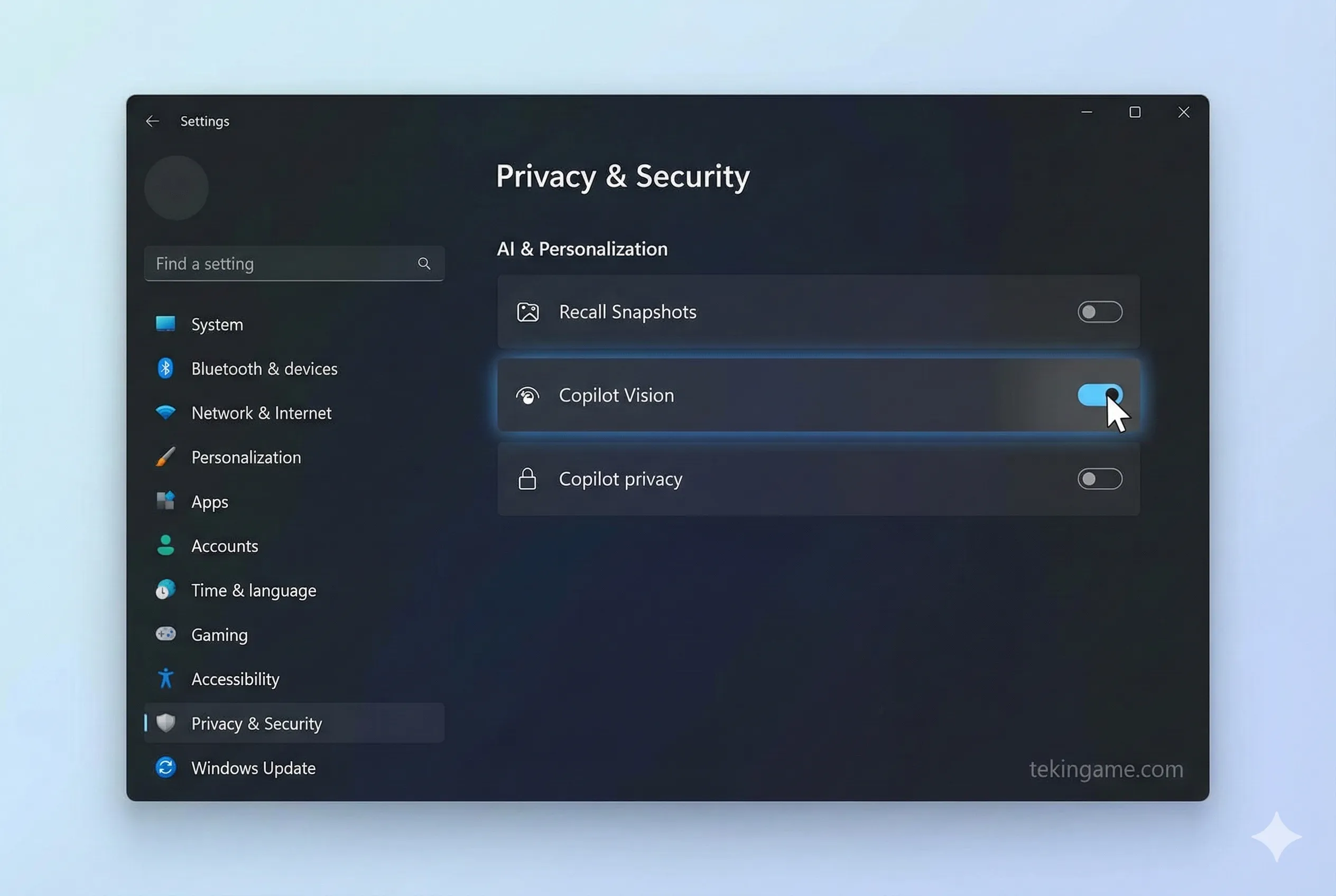
The Recall feature, which promises to "remember everything you do," is a privacy nightmare. It takes screenshots of your active window every few seconds. To disable it fully:
- Navigate to
Settings > Privacy & Security > AI Permissions. - Toggle "Recall Snapshots" to OFF.
- Crucial Step: Click "Delete past activity" to wipe the existing database stored on your drive.
- Under
Search Permissions, disable "Cloud Content Search" to prevent your personal files from being indexed by Bing.
2.2. Killing the Telemetry: Using O&O ShutUp10++
Even with settings turned off, Windows sends "Diagnostic Data" back to HQ.
We recommend the open-source tool O&O ShutUp10++. This lightweight utility allows you to toggle off over 100 hidden telemetry channels with a single click. It blocks the "silent" data streams that feed user behavior data to AI algorithms.
Pro Tip: Re-run this tool after every major Windows Update, as Microsoft often resets these settings silently.
3. Layer 2: Browser Defense (The Gateway)
Your browser is where you spend 90% of your time. Unfortunately, Google Chrome is now tightly integrated with Gemini.
3.1. Why Chrome is a Spy (Moving to Brave or Firefox)
Google recently activated the "AI Nano" API in Chrome, allowing websites to tap into the browser's built-in AI model. This creates a massive fingerprinting surface.
The Fix: Migrate to Firefox (Hardened) or Brave Browser. Brave blocks "Canvas Fingerprinting" and restricts WebGPU access (used for local AI processing) by default, ensuring that no website can run an AI model on your hardware without permission.
3.2. Essential Extensions: Confusing the Algorithm
Install these extensions immediately:
- uBlock Origin: Not just for ads, but for blocking tracking scripts and "pixel trackers."
- NoScript: (For advanced users) Prevents any JavaScript from running unless you explicitly allow it.
- TrackMeNot: This genius extension runs random, fake Google searches in the background while you surf. It floods your data profile with garbage noise (Data Poisoning), making it impossible for an AI Agent to build an accurate profile of your interests.
4. Layer 3: Network Fortification
If an Agent is running on your PC, you need to stop it from "phoning home."
4.1. Portmaster: The Firewall You Need
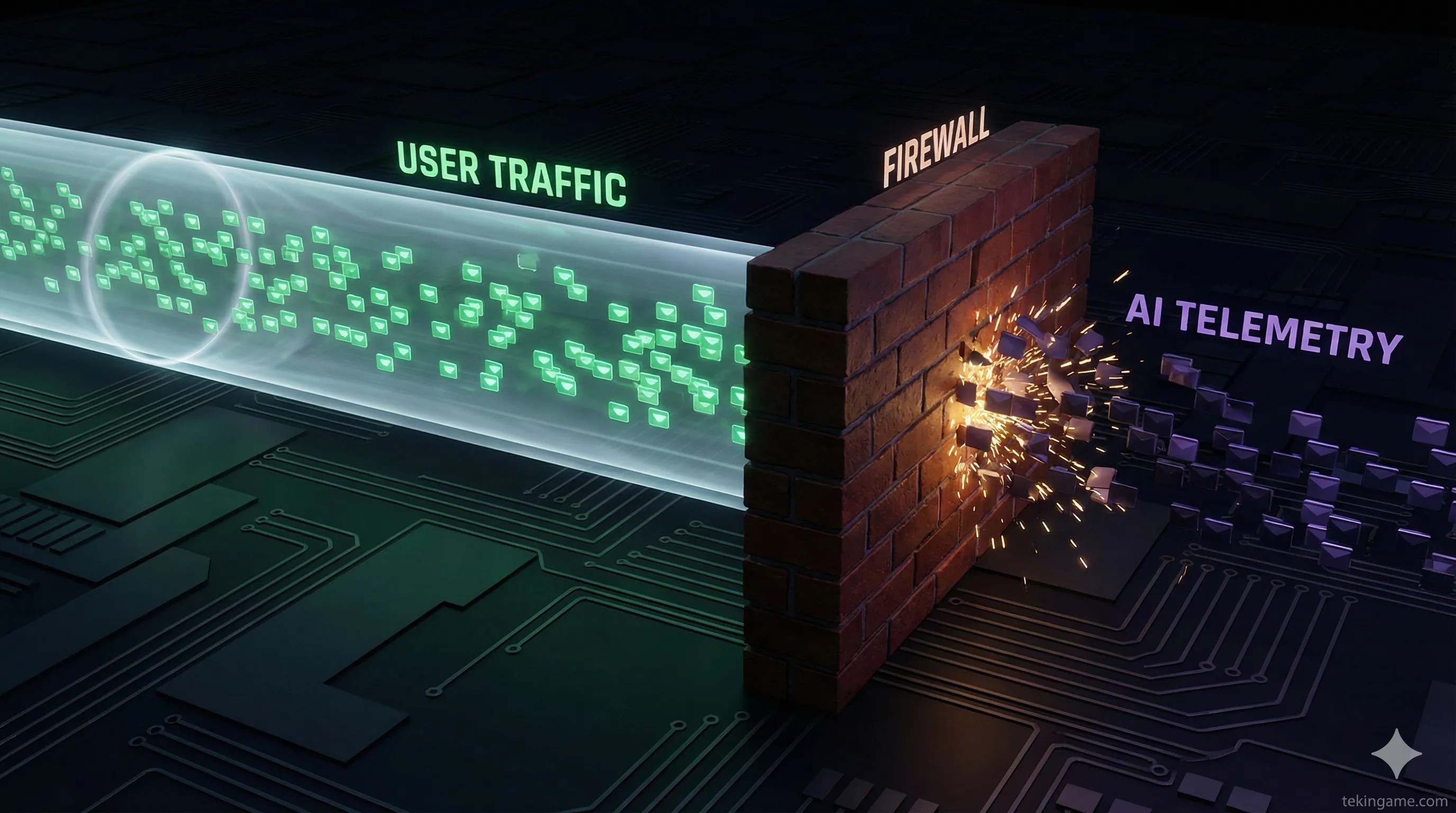
Standard Windows Firewall is weak. We recommend Portmaster (by Safing). It gives you a visual map of every app connecting to the internet.
You can specifically block "AI Service executables" from accessing the internet while allowing your browser to connect. If copilot.exe tries to send data, Portmaster will kill the connection instantly.
5. Layer 4: Isolation Tactics (Sandboxing)
Sometimes you need to use AI, or you need to do banking on a compromised machine. The solution is "Sandboxing."
5.1. How to Keep Banking Separate
Windows has a built-in feature called Windows Sandbox (available in Pro versions).
Whenever you need to access your Crypto Wallet or Bank:
- Launch Windows Sandbox (it opens a pristine, temporary instance of Windows).
- Do your sensitive business.
- Close the window. Everything inside—cookies, history, files—is instantly vaporized. Even if an Agent was watching your main desktop, it cannot see inside the Sandbox.
6. The Alternative: Go Local (Offline AI)
Being "Anti-AI" is not the solution; the solution is "Sovereign AI." Why ask ChatGPT private questions when you can run a model locally?
6.1. Why Ollama is Your New Best Friend
Tools like Ollama or LM Studio allow you to download powerful models (like Llama 3 or Mistral) and run them entirely on your own GPU.
The Benefit: You can unplug your ethernet cable, and the AI still works. You can feed it your company's confidential PDFs to summarize, and zero data leaves your room. In 2025, running "Local AI" is the ultimate status symbol of digital privacy.
7. The Ultimate 2025 Privacy Checklist
🛡️ TekinGame Defense Protocol:
- ✅ Disable: Windows Recall & History Snapshots.
- ✅ Switch: From Chrome to Brave/Firefox.
- ✅ Install: A strict firewall like Portmaster.
- ✅ Obfuscate: Use "TrackMeNot" to poison data collection.
- ✅ Isolate: Use Sandbox for banking/crypto.
- ✅ Physical: Cover your webcam (Yes, tape is still the best firewall!).
The era of Agents is exciting, but remember: Your data is the new currency. Do not spend it cheaply.