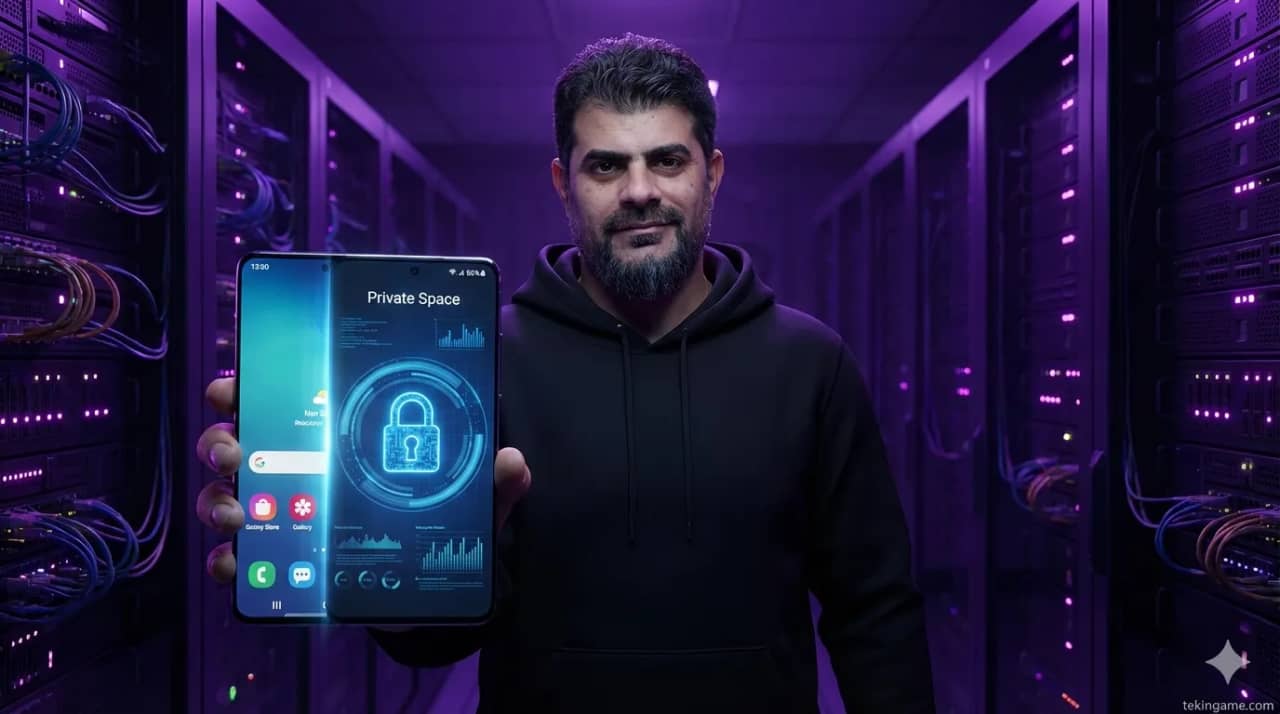
This Grade A++ Mega Article explores the revolutionary Private Space feature in Android 15 and 16. From setup guides to advanced file transfer features, Majid teaches you how to turn your phone into an invisible fortress.
1. Introduction: Your Digital Vault
Hello, Tekin family! Majid here, and today we’re talking about **Privacy**. We’ve all been there—handing our phone to a friend and praying they don’t see a banking notification or a private photo. Google solved this with Android 15's **Private Space**.
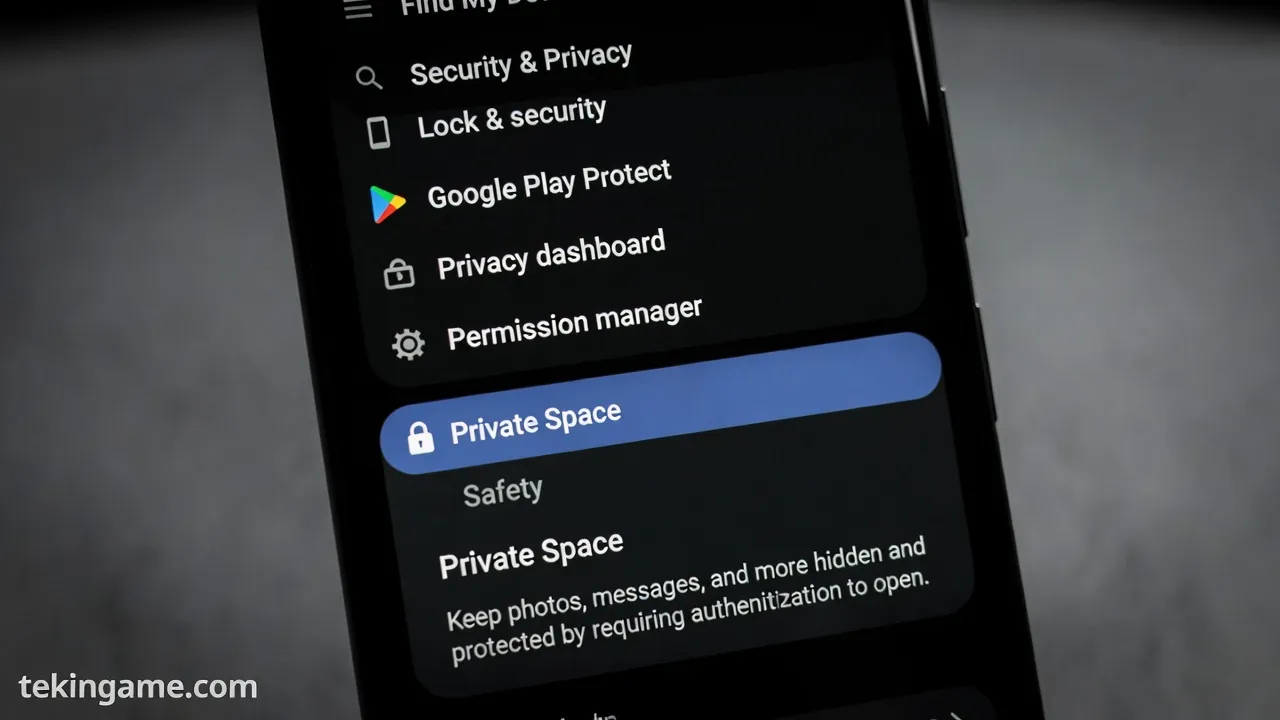
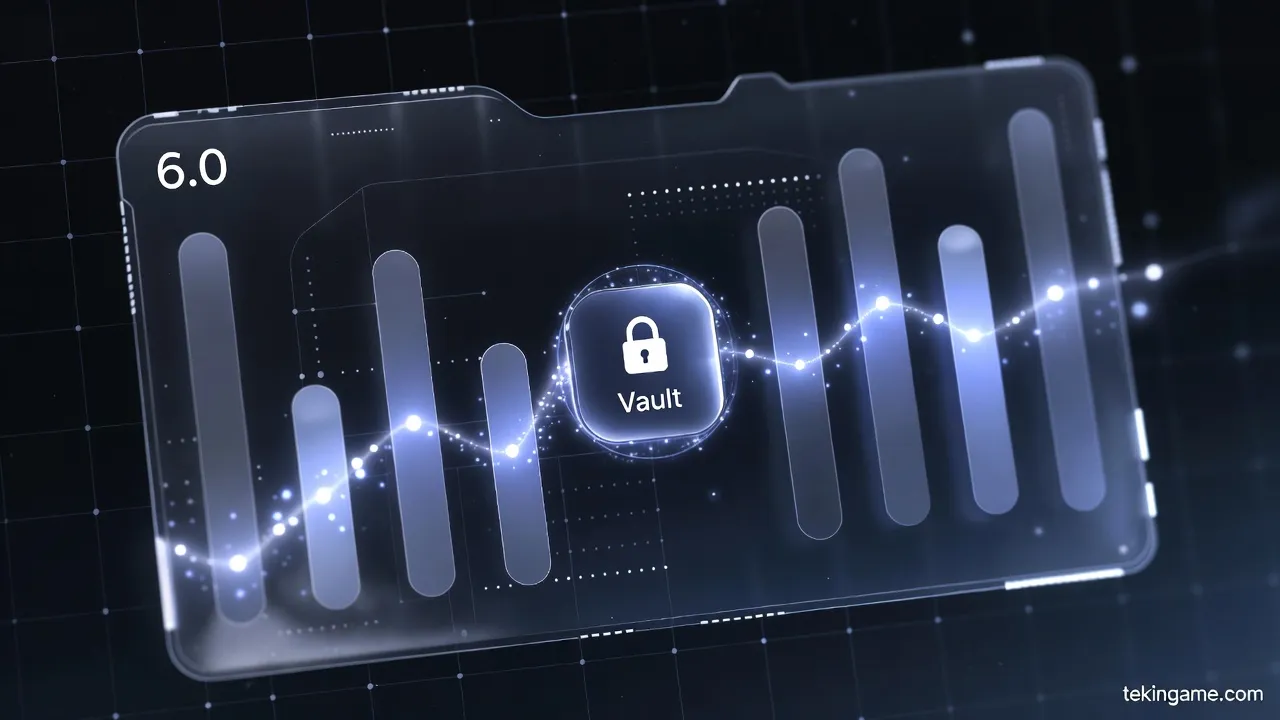
It’s not just a folder; it’s a separate, sandboxed profile that hides your apps from the drawer, settings, and notifications. Let’s dive into how to use it on Android 15 and the upcoming Android 16.
2. How it Works: The Sandbox Architecture
Private Space creates an isolated profile. Apps inside have no contact with your main data. When locked, they simply don't exist in the UI. Android 16 (Baklava) adds a dedicated 'Add' button for seamless file transfers, making it easier than ever to secure your data Alvarado.
3. Step-by-Step Setup
1. Go to **Settings > Security & Privacy**. 2. Tap **Private Space** and follow the onboard. 3. Use a separate Google Account for total isolation. 4. Set a unique PIN/Fingerprint.
4. Hiding the "Private Space" Itself
For maximum stealth, you can hide the Private Space bar from your App Drawer. To find it, you’ll need to search for it by name in the search bar. This adds a layer of 'Security through Obscurity' that is highly effective.
Conclusion: The Future of Mobile Privacy

Private Space is the best security feature in years. It’s built into the kernel, making it far superior to third-party app lockers. Secure your banking apps today!
Author: Majid (with Inspector Gemini)